Parental Controls in 2026: The Complete Setup Guide for Every Device
Step-by-step instructions for setting up parental controls on iOS, Android, Xbox, PlayStation, and routers, plus the limits of what they can actually do.
Before You Start
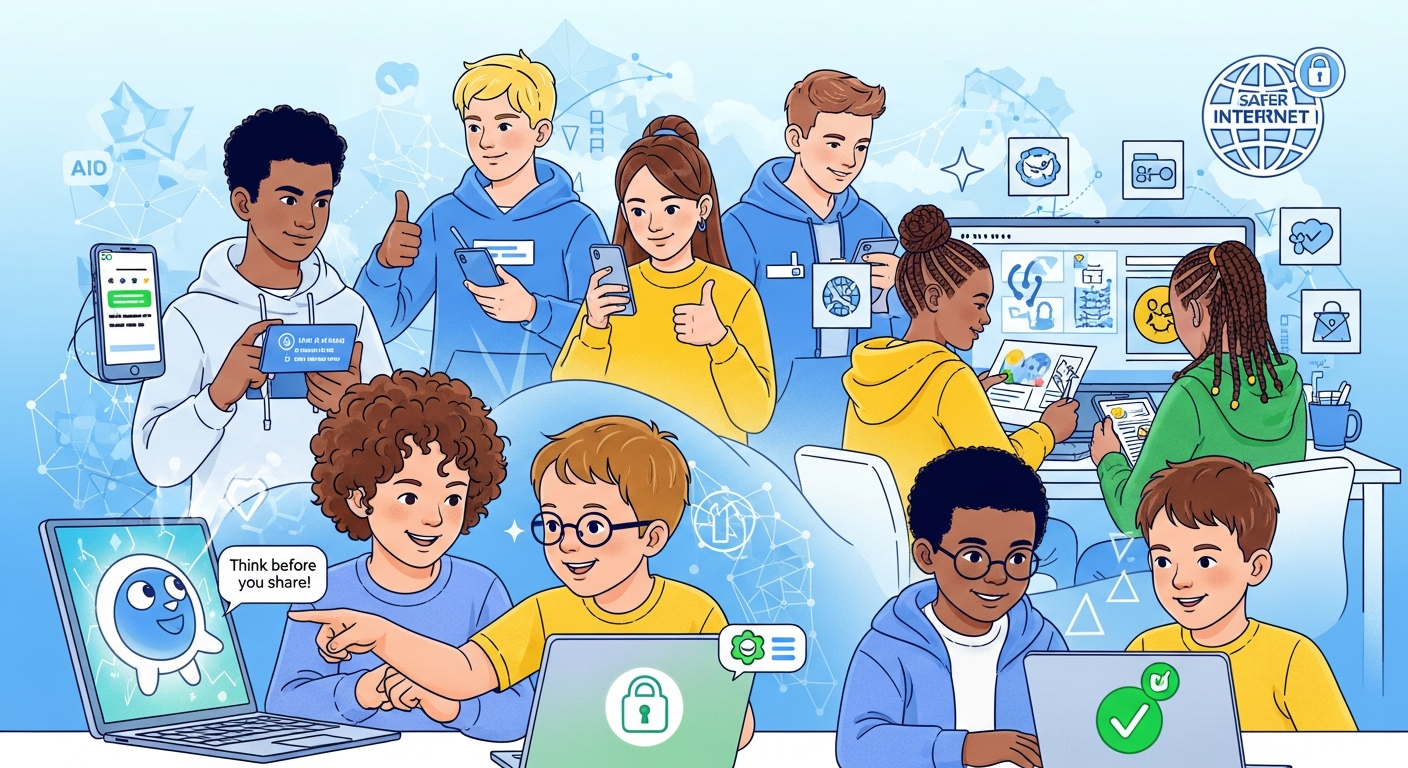
Parental controls work best as a supplement to conversation, not a replacement. Research by the NSPCC and Internet Matters consistently shows that children who can talk to a parent about what they encounter online are far better protected than those subject to controls alone.
iPhone and iPad (iOS Screen Time)
- Open Settings → Screen Time → Turn On Screen Time
- Select "This is My Child's [device]"
- Set a Screen Time passcode (different from the device passcode)
- Under Content & Privacy Restrictions : enable restrictions, set age ratings for apps/films/music, and block explicit websites
- Use Communication Limits to restrict who your child can contact
- Set Downtime schedules. Screen turns off during school hours and at bedtime.
- Enable Share Across Devices to monitor via your own iPhone using Family Sharing
Android Devices (Google Family Link)
- Download Google Family Link on both your phone and your child's Android device
- Create or link your child's Google account
- Set app download approvals, any new app requires your permission
- Enable SafeSearch in Google and content filters on YouTube (YouTube Kids for under-13s)
- Set daily screen time limits and bedtime schedules
- Track device location via the Family Link app
Router-Level Filtering (Protects All Devices on Your Wi-Fi)
Router-level filtering is more robust than device controls alone because it covers every device on your home network, including friends' phones when they visit.
- BT , Sky , Virgin Media , TalkTalk and EE all offer free parental controls via their router settings. Log in to your router's admin page or contact your ISP.
- Vodafone Secure Net , available for Vodafone broadband customers
- Circle Home Plus : third-party device that attaches to any router. Offers per-device controls, screen time limits, and content filtering.
- DNS filtering (advanced): change your router's DNS server to Cloudflare 1.1.1.3 (Families) or CleanBrowsing for free adult content filtering.
Key Apps to Monitor or Restrict
| App / Platform | Recommended Age | Key Safety Setting |
|---|---|---|
| TikTok | 13+ | Family Pairing, Screen Time limits, private account |
| 13+ | Supervised Accounts, private account, message restrictions | |
| Snapchat | 13+ | Family Centre (connect parent account), ghost mode on |
| Roblox | 7+ | Pin-protected settings, restrict chat, no real-name profile |
| Discord | 13+ | Limit to known servers, disable DMs from strangers |
| 16+ (UK ToS) | Privacy settings: profile photo/status visible to Contacts only |
Further Resources
- Internet Matters: internetmatters.org , step-by-step parental control guides for every device and platform.
- NSPCC Net Aware: net-aware.org.uk , parent reviews and safety ratings for apps and social networks.
- Ofcom's Online Nation Report 2024 , the latest data on children's internet use.
Sources: NSPCC, Online Safety for Children: What Parents Need to Know (2024); Internet Matters, Parental Controls Guide 2026 ; Ofcom, Children and Parents: Media Use and Attitudes Report 2023 (2024); UK Safer Internet Centre, Parents and Carers Online Safety Resources (2024). Last reviewed: April 2026.